
Fixing Special Character Rendering in Visualforce PDF Quotations

NSIQ Infotech
Salesforce Partner
July 30, 2026
2 min Read
Client Requirement
The client wanted to generate a quotation PDF from Salesforce using a Visualforce page rendered as PDF. The quotation contained technical product specifications that included special scientific and engineering symbols such as:
- Ω (Ohm)
- µ (Micro)
- β (Beta)
- ≤ (Less Than or Equal To)
- ≥ (Greater Than or Equal To)
- π (Pi)
Challenges
Visualforce PDF rendering has limited Unicode support
Standard fonts such as Arial, Helvetica, and Times New Roman do not render all Unicode symbols in Salesforce-generated PDFs.
The issue was specific to PDF generation; the symbols displayed correctly on normal Visualforce pages and Lightning pages, since browsers use system fonts while the PDF renderer relies only on the fonts embedded in the page.
Solution
To resolve this, a custom Unicode-compliant font (Noto Sans Regular) was uploaded to Salesforce as a Static Resource and applied to the Visualforce PDF template using a @font-face declaration. Noto Sans was chosen because it provides broad Unicode glyph coverage, including Greek letters (Ω, β, π), the micro sign (µ), and mathematical comparison operators (≤, ≥), all of which are required for the quotation's technical specifications.
By forcing every HTML element used in the template tables, cells, paragraphs, spans, headings, and lists to use this font instead of falling back to the default Arial, every special character is rendered from glyphs that actually exist in the embedded font, rather than being substituted or dropped by the PDF renderer.
For this fix, only the Regular weight of the font (NotoSans-Regular.ttf) was uploaded and referenced. Bold and italic variants were not required, since the quotation template does not rely on separate bold/italic font files to display these technical symbols correctly.
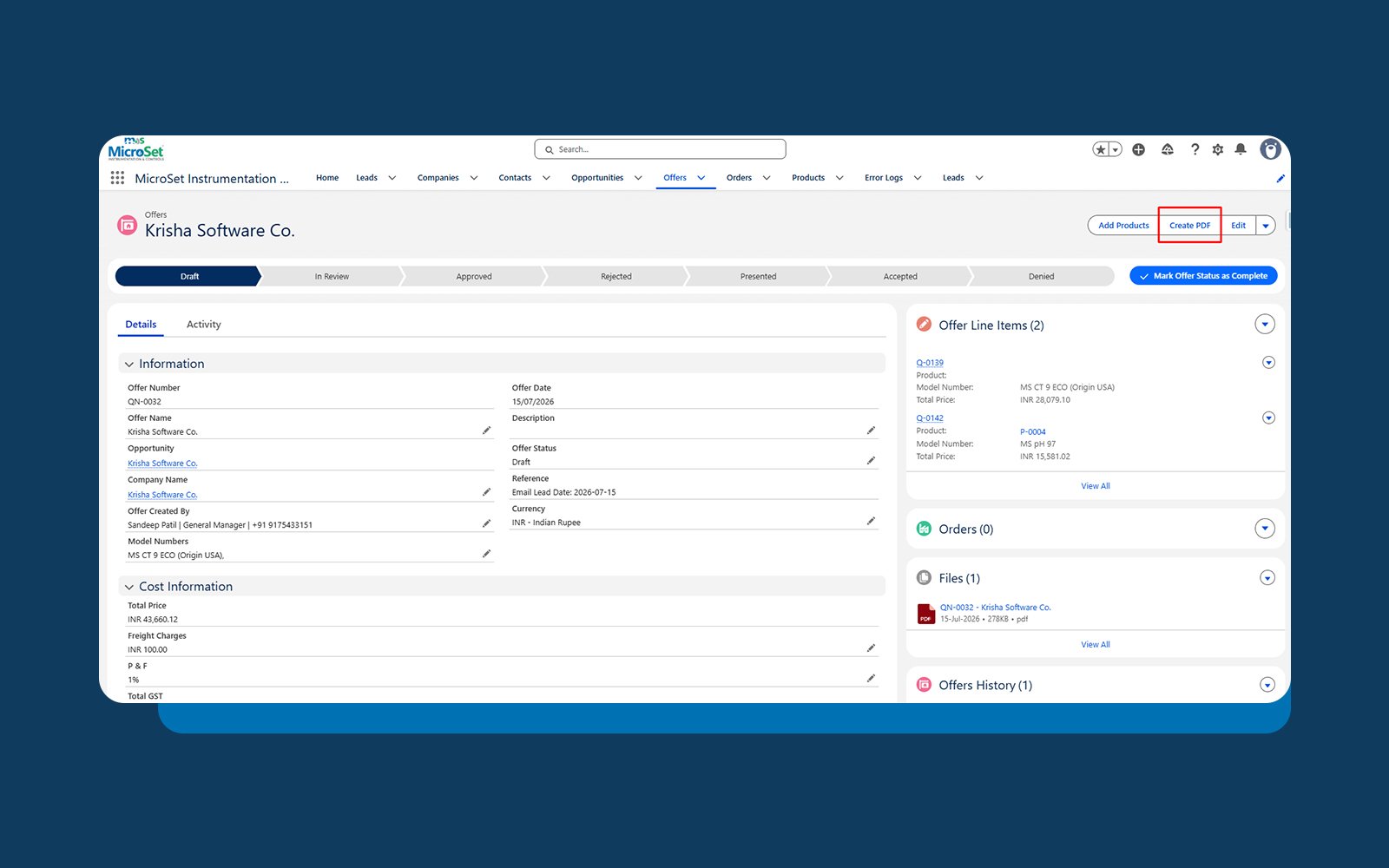
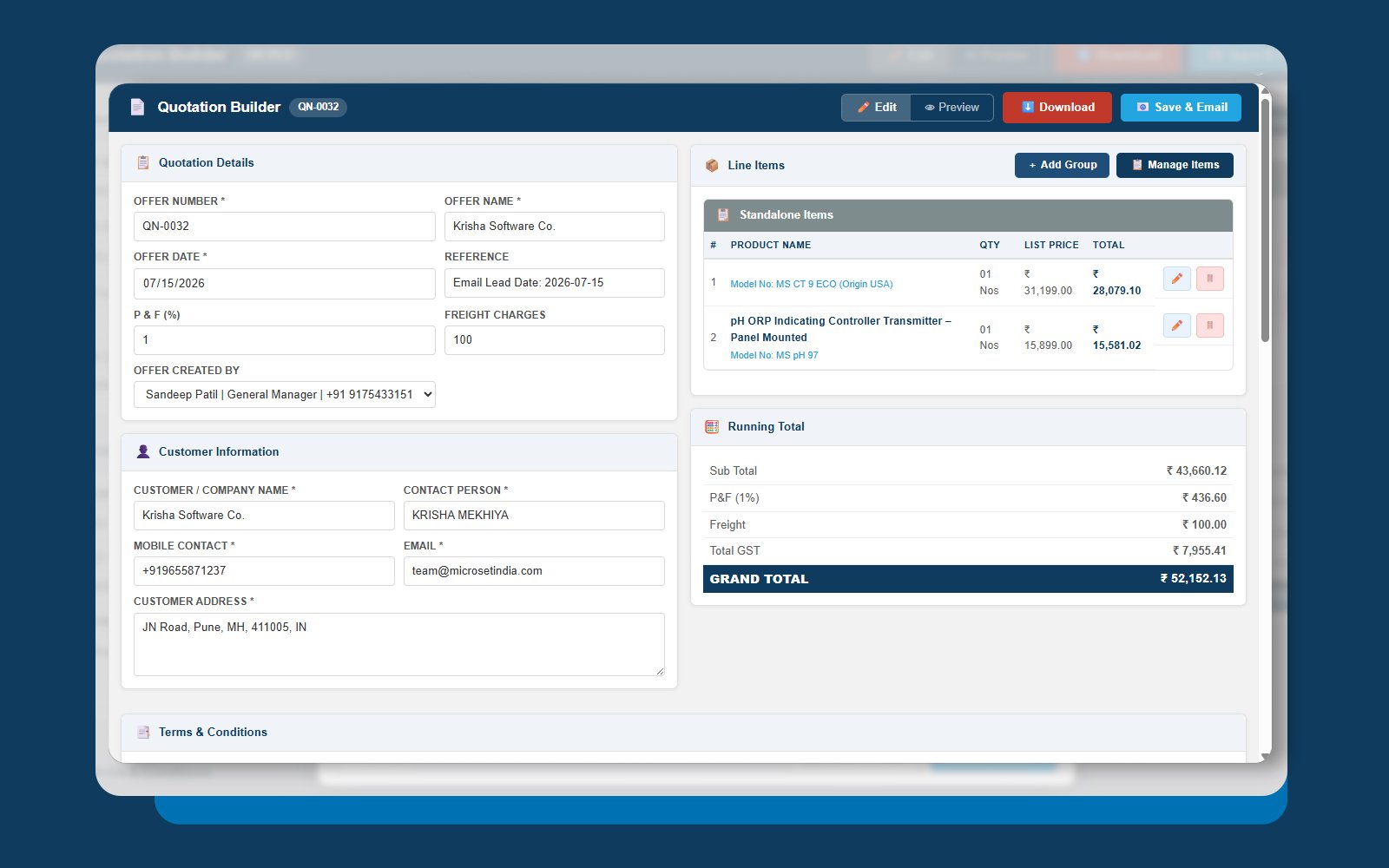
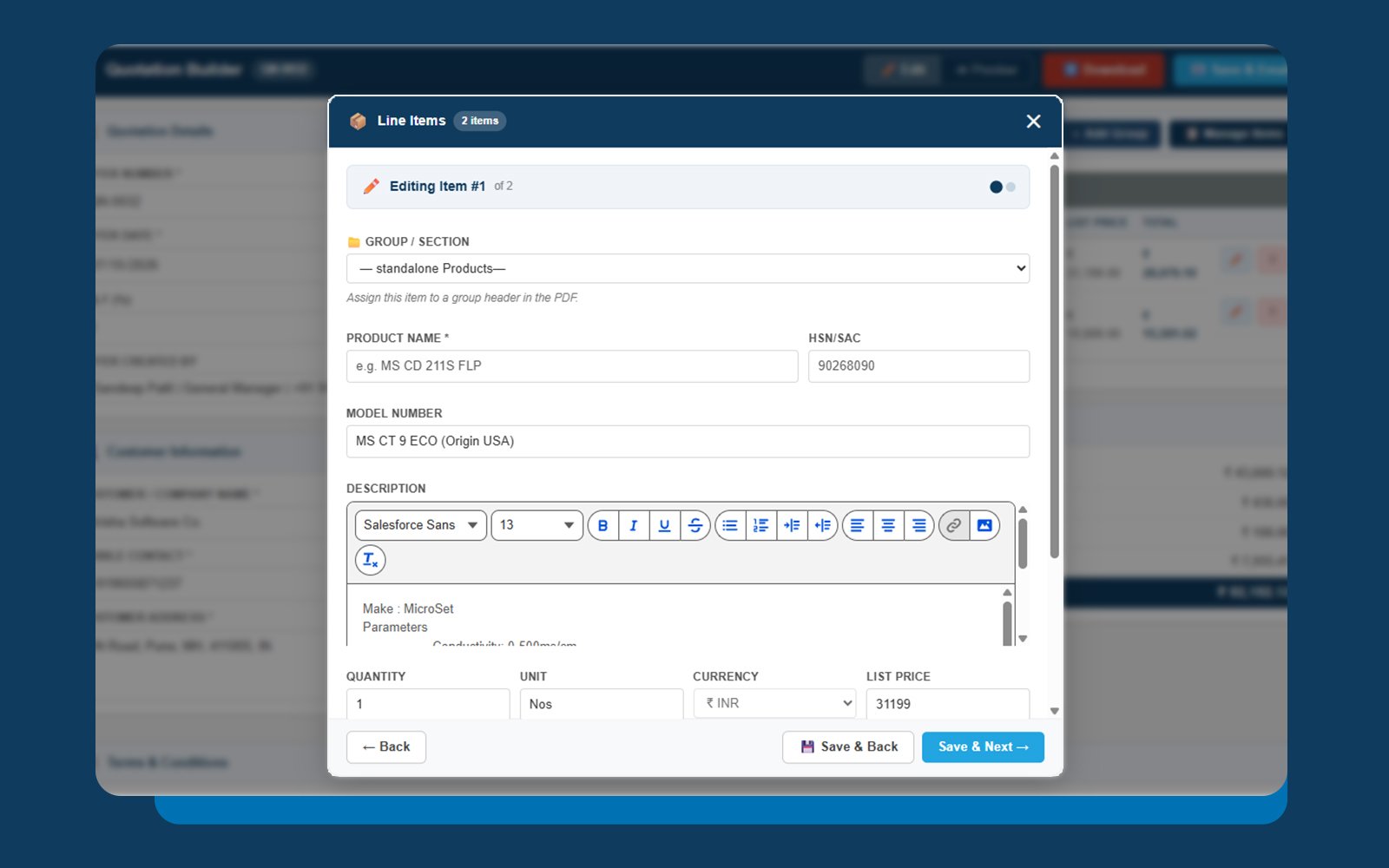
Implementation Screenshots
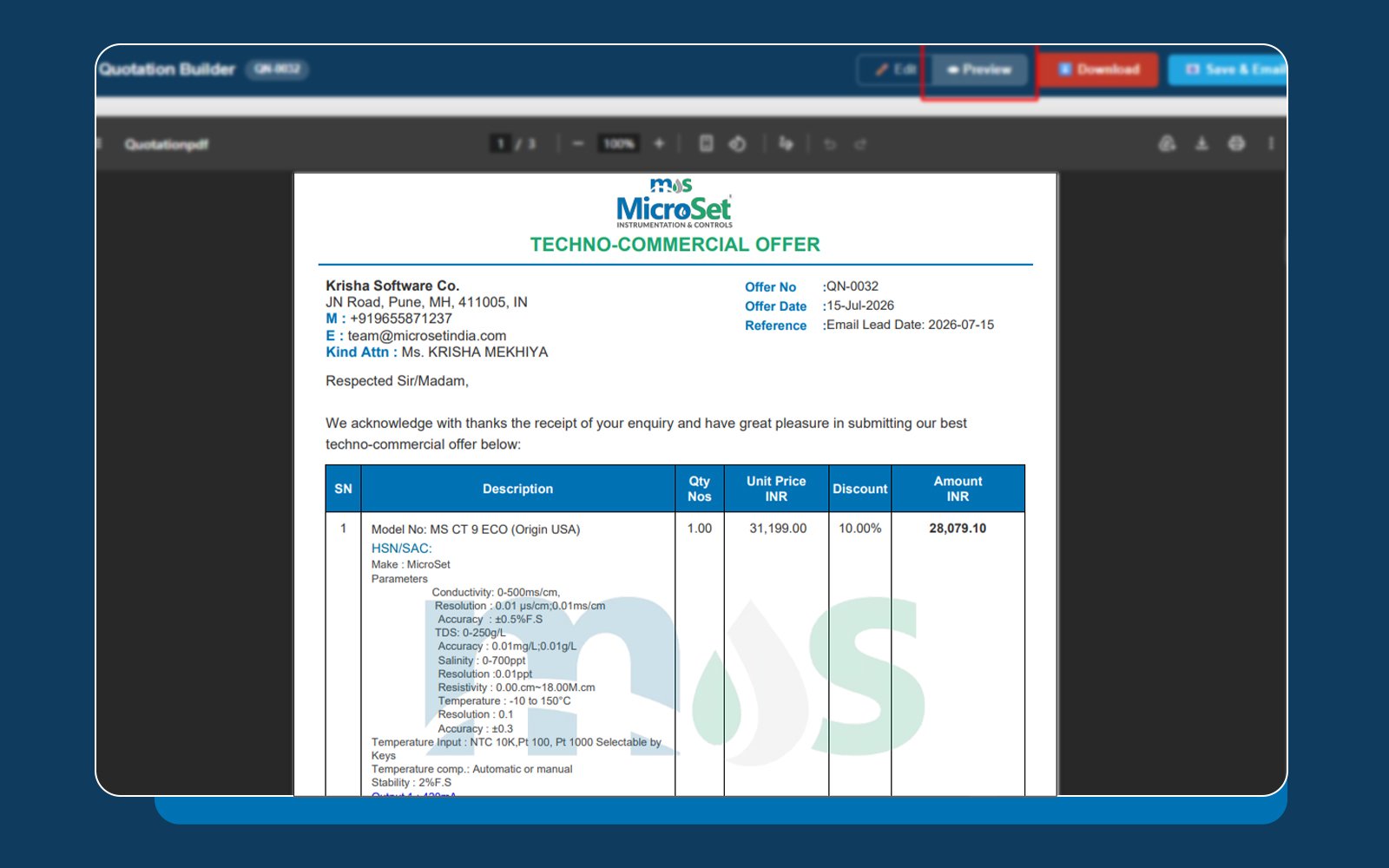
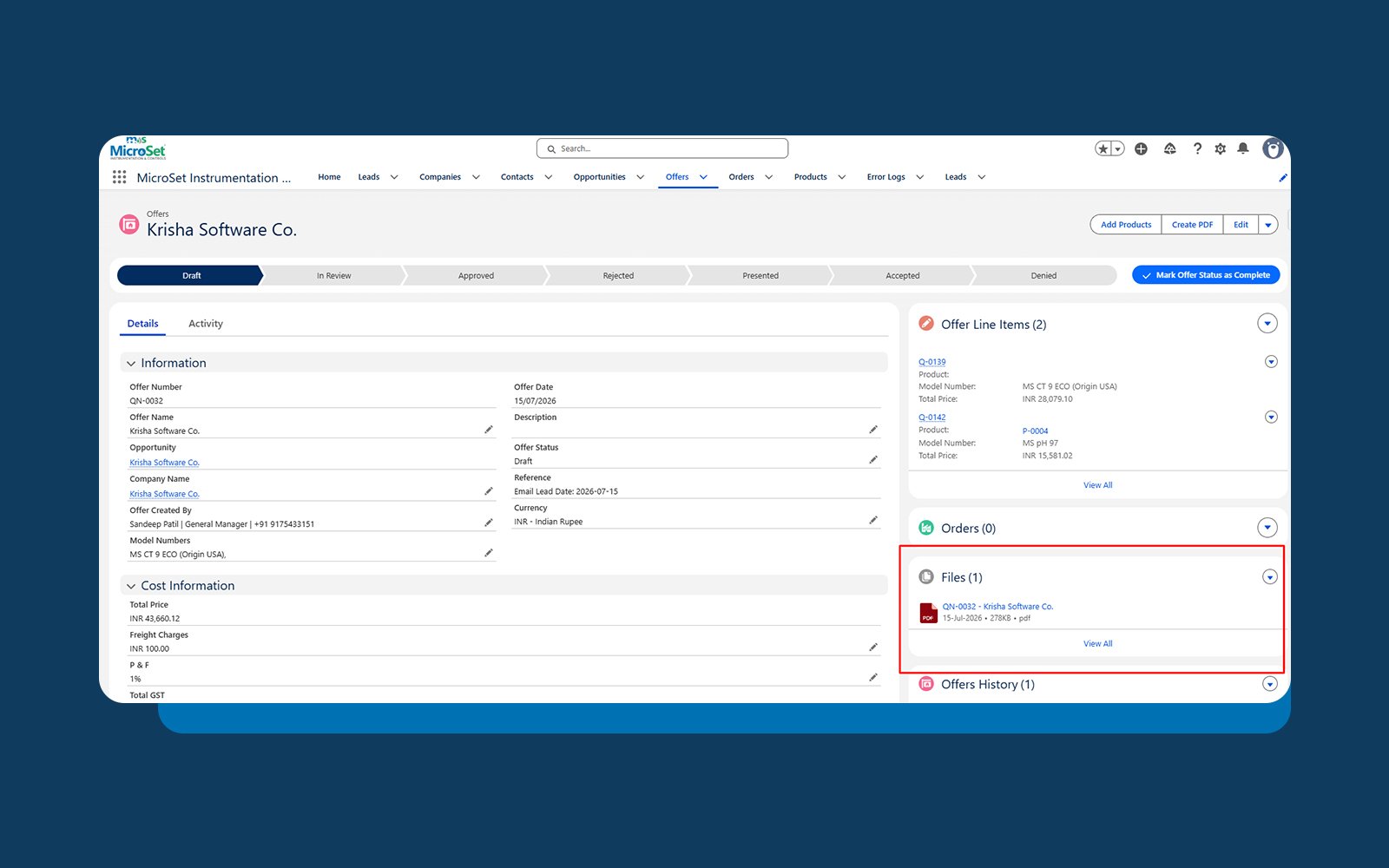
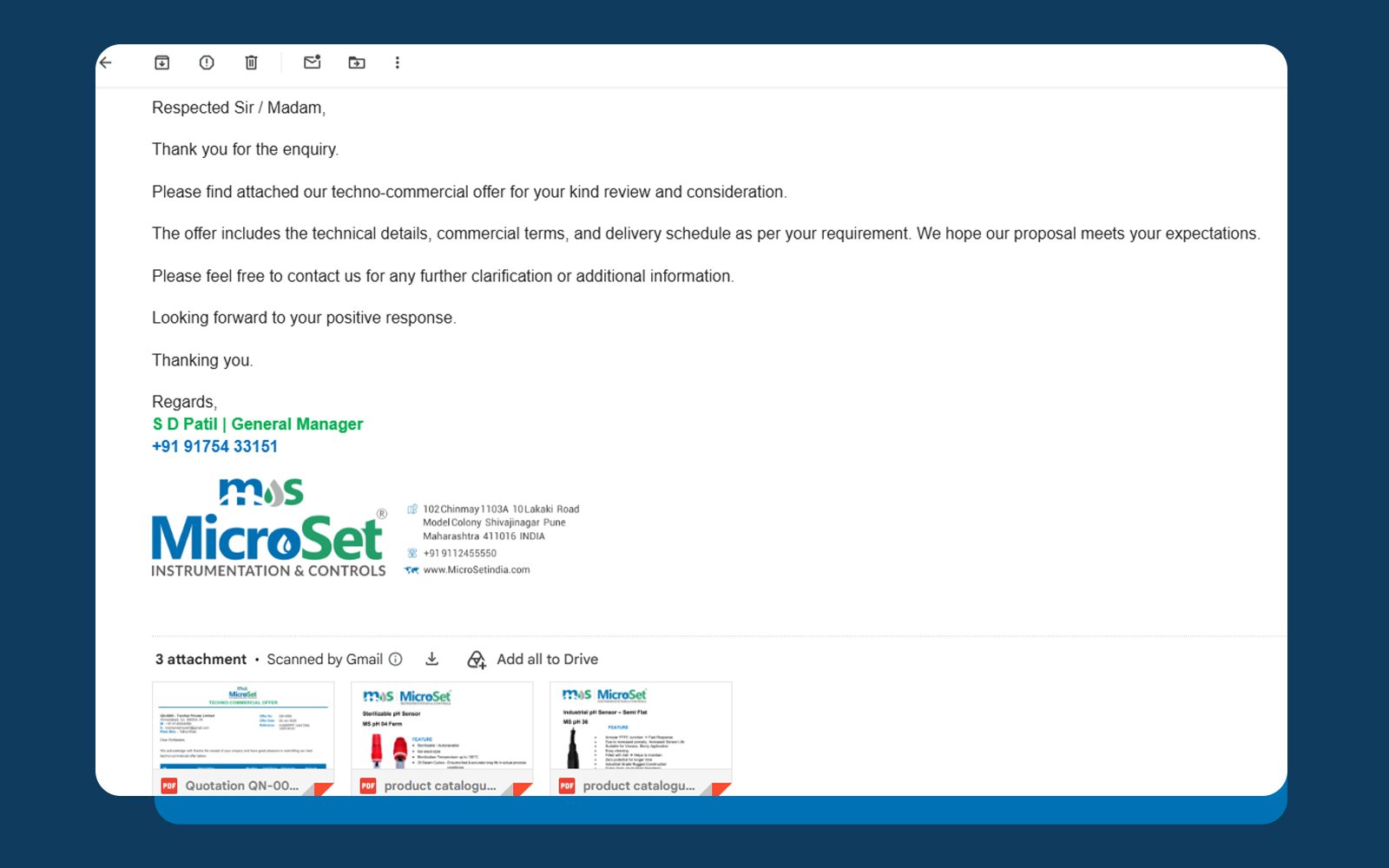
Results
After applying the Noto Sans font via Static Resource, the quotation PDF rendered all required symbols correctly and consistently:
| Aspect | Before vs. After |
| Symbol rendering | Empty boxes and question marks replaced with correctly rendered Ω, µ, β, ≤, ≥, π |
| Quotation accuracy | Technical specifications now match the intended product data exactly |
| Client acceptance | Quotation PDF accepted without rework or manual correction |
| Scope of fix | Consistent rendering across all quotation line items and templates using the same Visualforce component |
| Root cause resolved | Issue was isolated to PDF rendering only — no changes were needed for standard Visualforce or Lightning page display |
| Residual limitation | Indian Rupee symbol (₹) still not supported in PDF output — workaround in place using “INR”/“Rs.” text |
Conclusion
The special characters required for the client’s technical quotations Ohm, micro, beta, less-than-or-equal-to, greater-than-or-equal-to, and pi could not be reliably rendered by Visualforce’s default PDF fonts, resulting in incorrect and unacceptable quotation documents. By uploading a Unicode-compliant Noto Sans font as a Static Resource and applying it globally across the Visualforce PDF template through a @font-face declaration, every required symbol now renders correctly and consistently.
This is a lightweight, reusable fix: the same Static Resource and font-family override can be applied to any other Visualforce PDF template in the org that needs to display Unicode symbols, without requiring any change to the underlying data or business logic. One known limitation remains the Indian Rupee symbol (₹) is still not rendered correctly by Salesforce’s Visualforce PDF engine and is being handled with a text-based workaround (“INR”/“Rs.”) until Salesforce provides native support for this character in generated PDFs.

Have a similar project in mind?
Let's discuss how Salesforce can transform your operations too.
Have A Look At
Our Success Stories
"Over the years, NSIQ Infotech has successfully delivered innovative Salesforce solutions to businesses across various industries. Explore some of our success stories and discover how we've helped clients streamline operations, improve productivity, and accelerate growth."

How Salesforce Helped a Manufacturing Company Reduce Service Delays and Improve ROI
Read More
UNI Bank’s Success with Salesforce Marketing Cloud
UNI Bank’s Success with Salesforce Marketing Cloud showcases how the bank transformed its marketing operations…
Read More
Sales Cloud Implementation for a Restoration Company
Sales Cloud Implementation for a Restoration Company streamlined lead management, customer tracking, and sales processes…
Read More
Salesforce Experience Cloud for Job Seekers
Salesforce Experience Cloud for Job Seekers provides a personalized self-service portal where candidates can create…
Read More
GTM CoPilot App Exchange Integration With Salesforce Sales Cloud
GTM CoPilot AppExchange Integration with Salesforce Sales Cloud enables seamless synchronization of go-to-market insights, sales…
Read More
Account Engagement for Website Form Integration
This project focused on integrating website forms with Salesforce Account Engagement (Pardot) to automate lead…
Read More